
How to Set Up M3U on TiviMate
Complete Guide 2026
If you’ve just installed TiviMate and want to start watching live TV, movies, and sports, you’ll need an M3U playlist from a reliable IPTV provider.
In this complete guide, you’ll learn how to set up M3U on TiviMate in just a few minutes. Follow the three simple steps below to start streaming instantly.
What Is TiviMate?
TiviMate is one of the most popular IPTV player apps designed for Android TV devices. It allows you to watch live TV channels using an M3U playlist or Xtream Codes provided by your IPTV service.
TiviMate itself does not include any channels or content—it simply organizes and plays the IPTV playlists you add. With features like an intuitive TV guide (EPG), favorites, channel search, multiple playlist support, and a modern interface, TiviMate offers a premium viewing experience on Android TV, Google TV, Fire TV Stick, NVIDIA Shield, and other compatible devices.
TiviMate Features
- M3U & Xtream Codes Support
- Electronic Program Guide (EPG)
- Favorites Management
- Multiple Playlist Support
- Modern & Easy-to-Use Interface
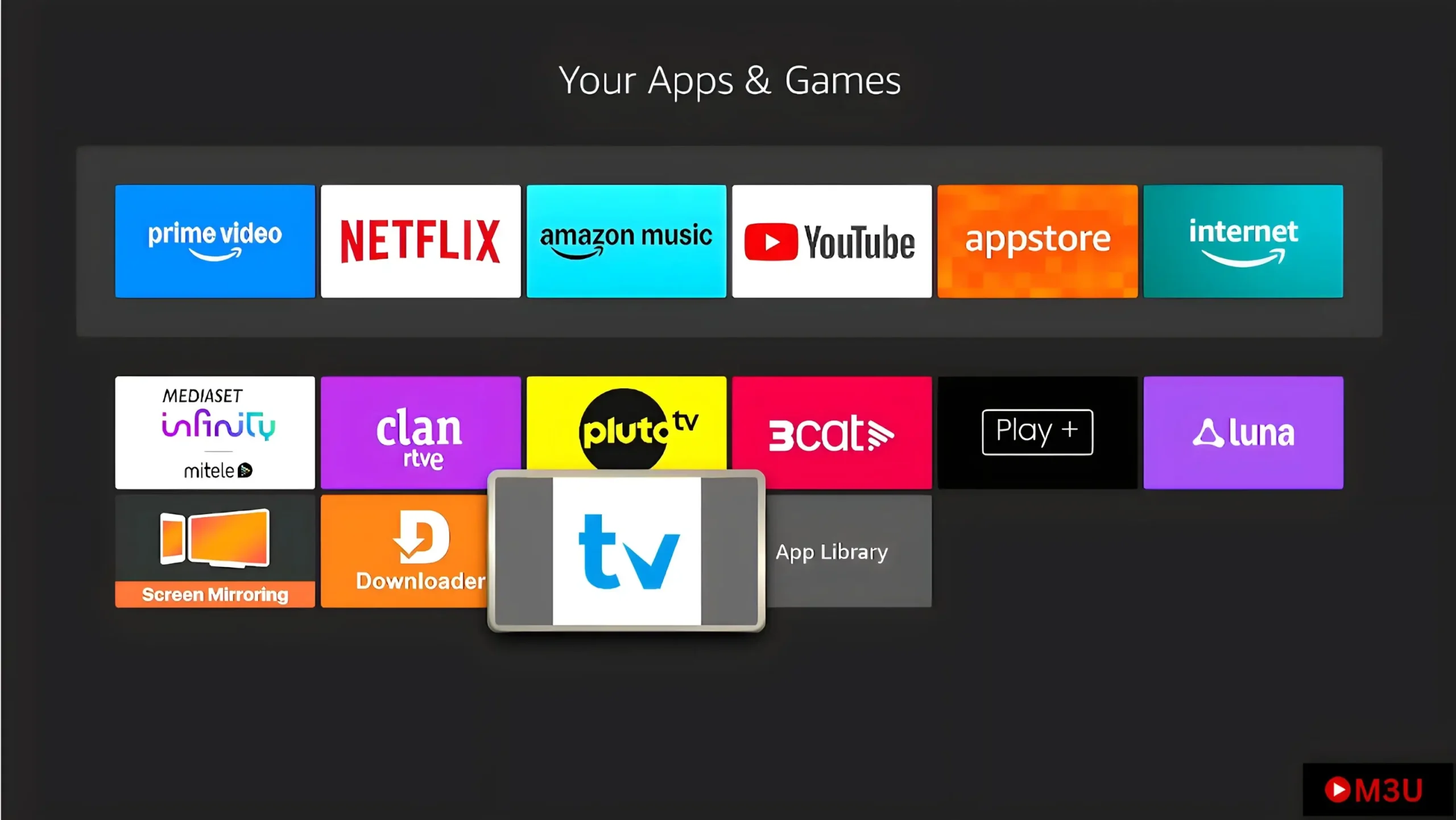
Step 1: Install TiviMate
TiviMate is only available for Android-based devices. It is not available for Samsung Smart TVs (Tizen OS), LG Smart TVs (webOS), Apple TV, iPhone, or iPad because it is not listed in the Samsung App Store, LG Content Store, or Apple’s App Store.
Step 2: Get an M3U Playlist Instantly
How to Get an M3U Playlist Instantly
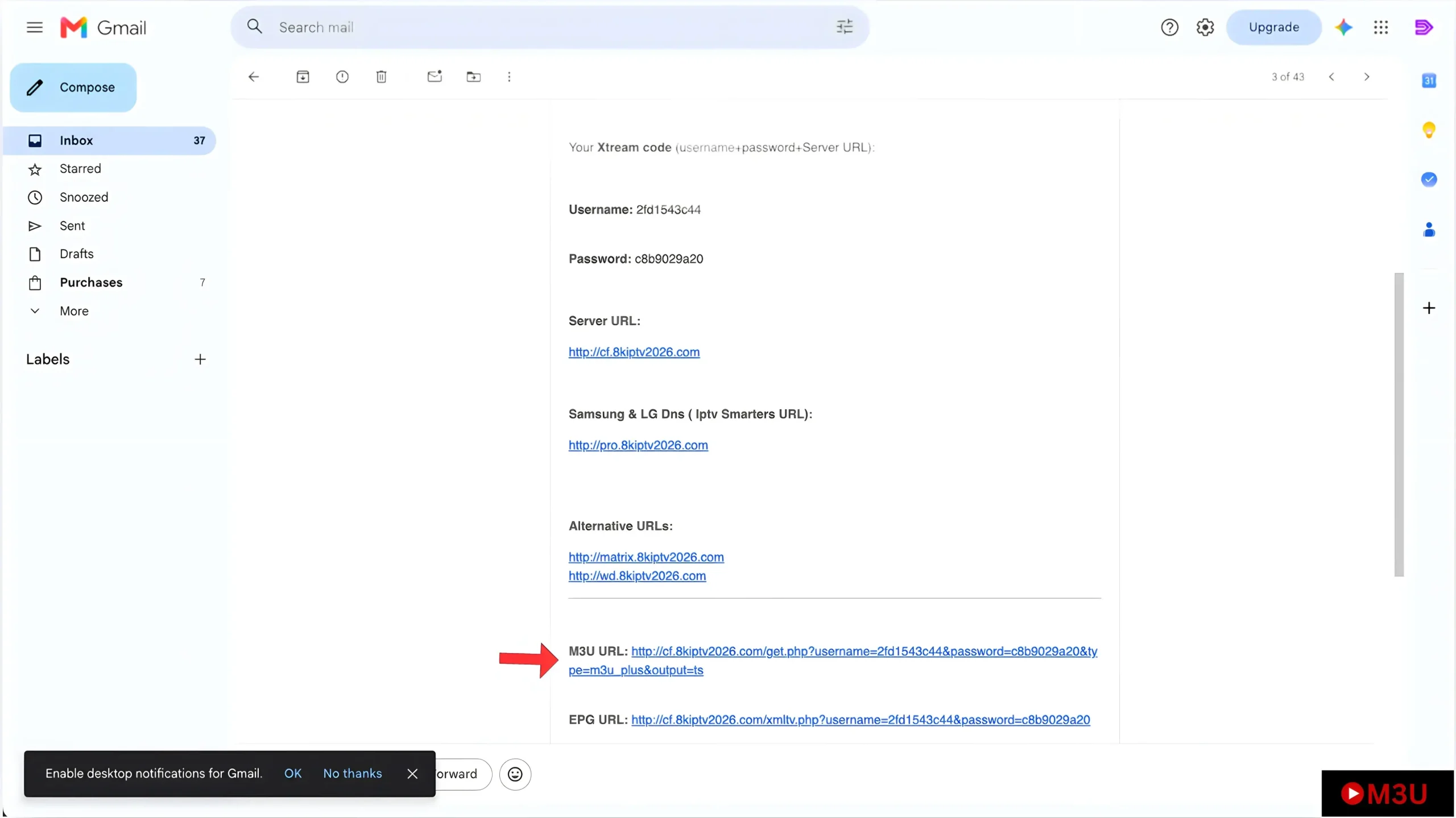
The easiest way to get your M3U playlist is by following our complete step-by-step guide. It shows you how to choose a trusted IPTV provider, complete your order, and receive your M3U playlist, Xtream Codes, and EPG instantly.
Step 3: Add M3U Playlist to TiviMate
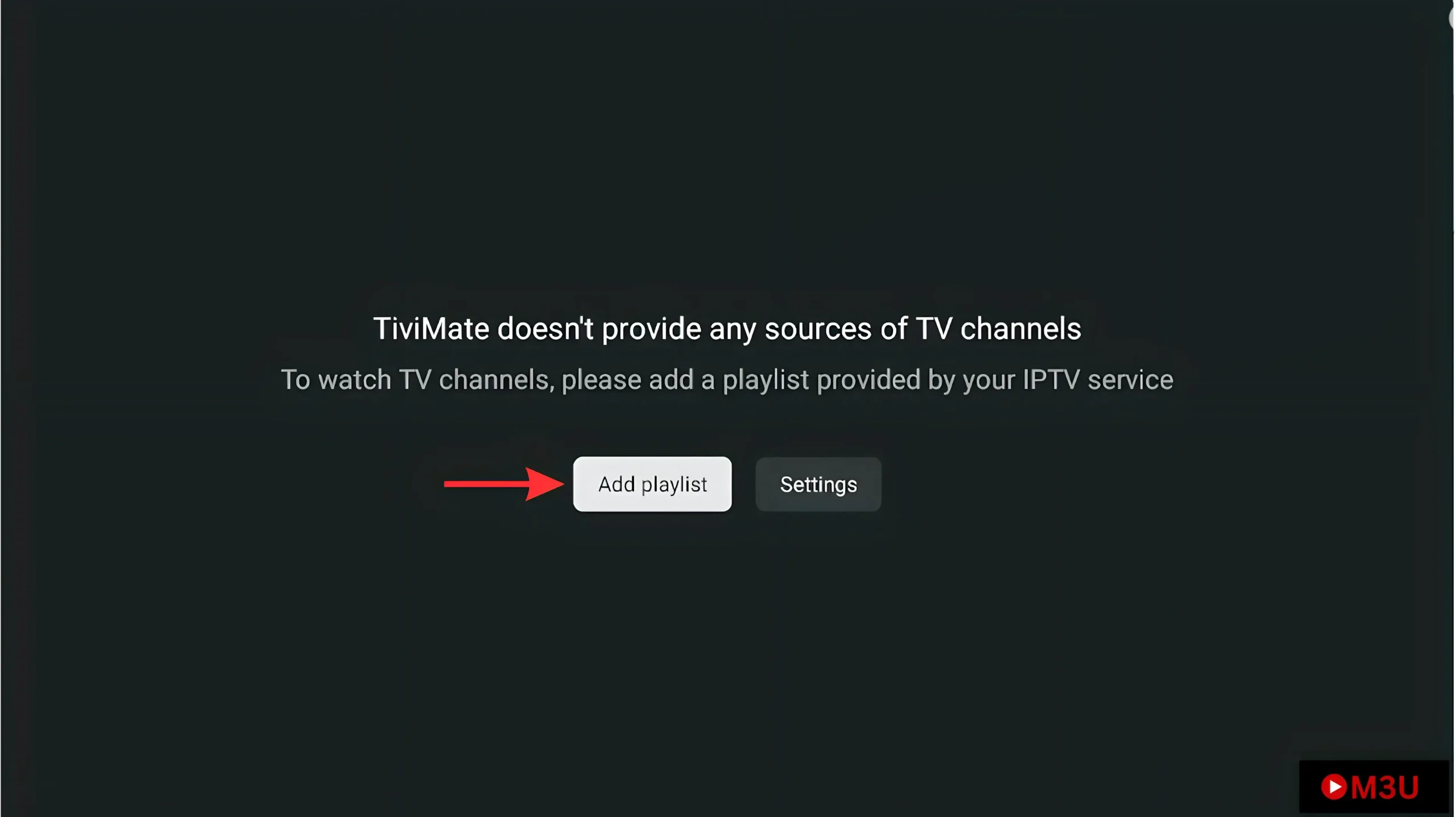
Once you’ve received your M3U playlist, adding it to TiviMate only takes a few minutes. Simply import your M3U URL, let TiviMate load your channels and EPG, and you’ll be ready to start watching live TV, movies, sports, and more.
1. Open TiviMate and tap Add Playlist.
2. Choose M3U Playlist.
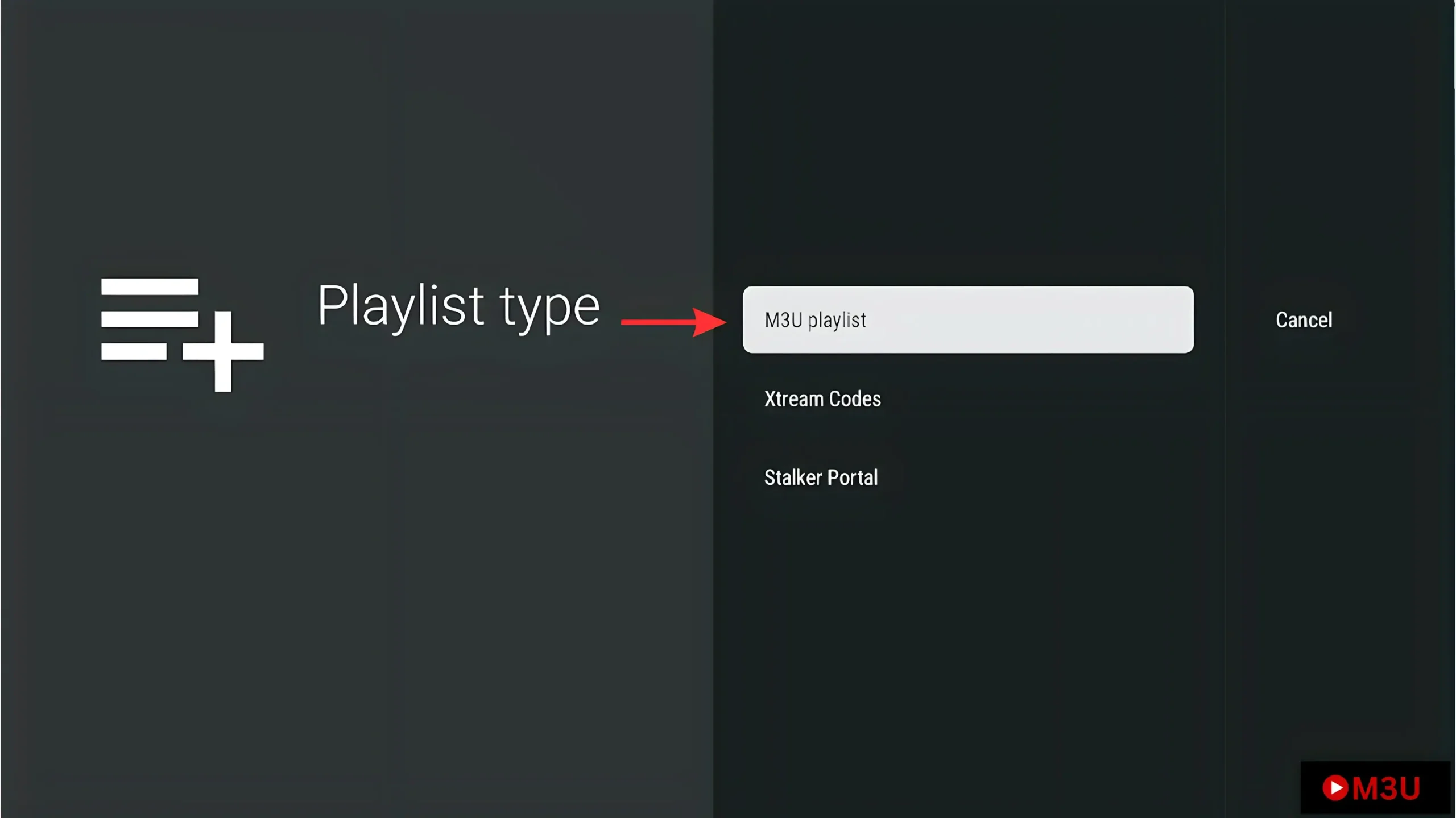
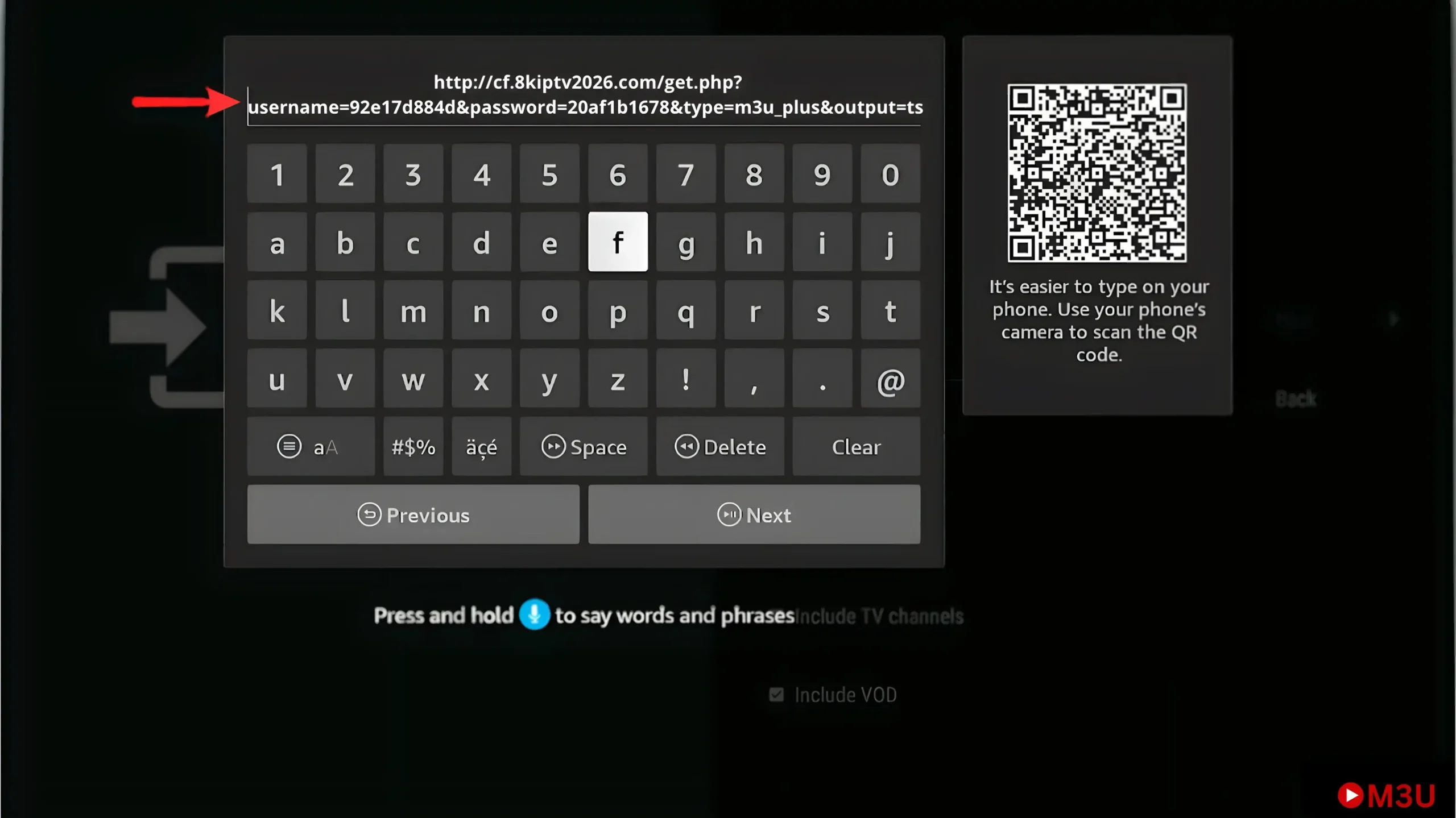
3. Enter your M3U URL.
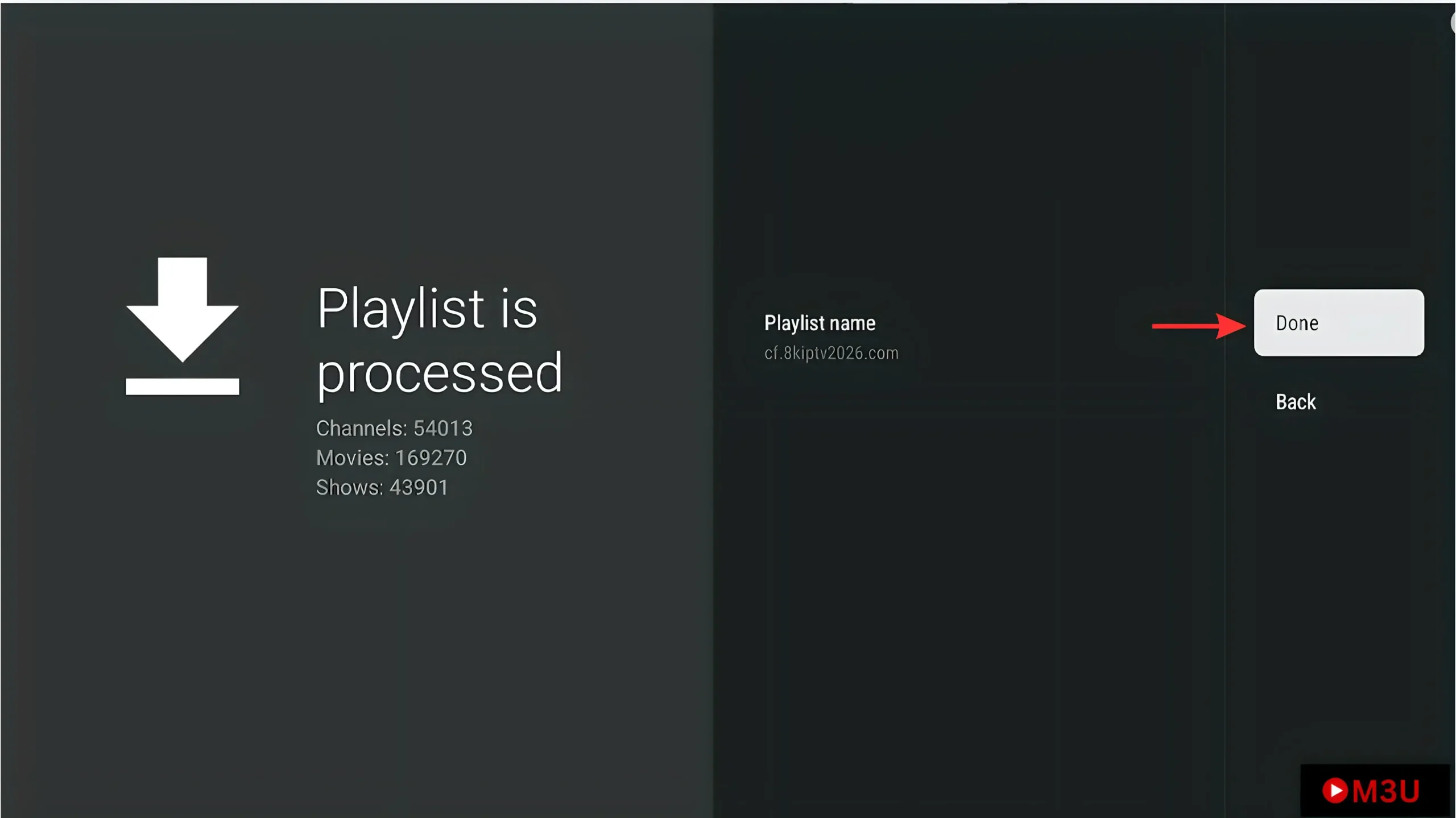
4. Press Done.
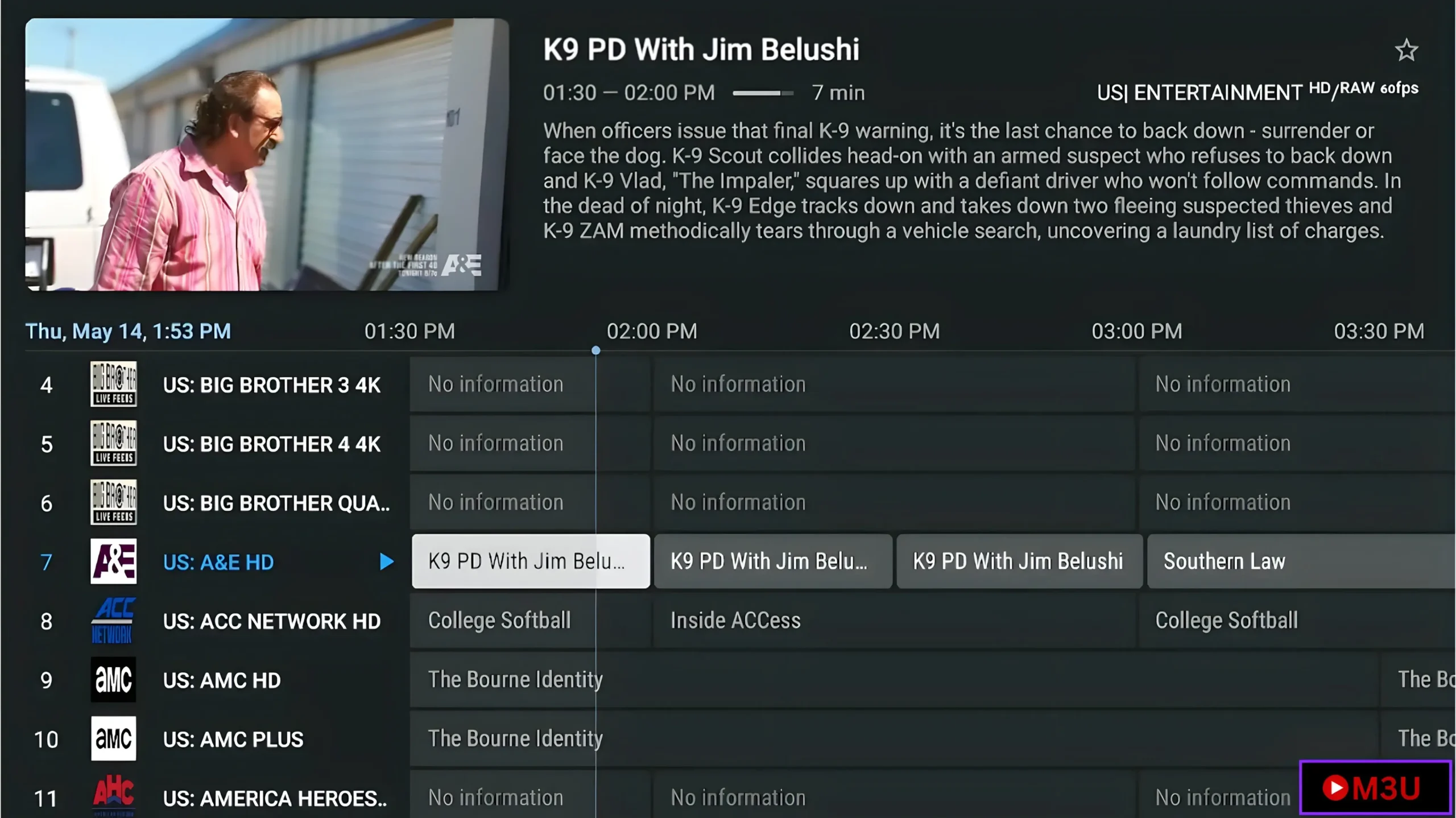
5. Start Watching.
How to Add an M3U Playlist to Popular IPTV Apps
Most IPTV apps support M3U playlist links, making setup quick and easy. Follow the guides below to add your M3U playlist and start streaming live TV, movies, and series on your preferred device.
IPTV Smarters Pro
Learn how to add your M3U playlist to IPTV Smarters Pro on Android, iPhone, Firestick, Windows, macOS, and Smart TVs in just a few simple steps. Read the complete IPTV Smarters Pro installation guide →
IBO Player
Discover how to configure your M3U playlist in IBO Player for Samsung, LG Smart TVs, and other supported devices. Read the complete IBO Player installation guide →
SmartOne
Learn the easiest way to add your M3U playlist to SmartOne IPTV and enjoy stable streaming on your Smart TV. View the full SmartOne IPTV setup guide →
Xtream Player
Set up your M3U playlist in Xtream Player quickly and start watching live TV channels, movies, and series without hassle. Follow the complete Xtream Player installation guide →
XCIPTV
Import your M3U playlist into XCIPTV Player in minutes and access live TV, VOD, and TV series with an easy setup process. Read the complete XCIPTV Player installation guide →
Devices Compatible with TiviMate
TiviMate is compatible with Android-based streaming devices. Below are the most popular devices that support the TiviMate IPTV player.
Android TV
Works perfectly on Android TV devices from brands such as Sony, Philips, TCL, Hisense, and more.
Google TV
Compatible with Google TV devices, including Chromecast with Google TV and Google TV smart TVs.
mazon Fire TV Stick
Fully compatible with Amazon Fire TV Stick devices and easy to install using the Downloader app.
NVIDIA Shield TV
Delivers excellent performance thanks to powerful hardware and smooth playback.
Chromecast with Google TV
Supports installation through the Google Play Store for a quick and simple setup.
Xiaomi Mi Box
Fully supported on Xiaomi Mi Box and Mi Box S for reliable IPTV streaming.
Android TV Boxes
Works on most Android TV boxes running Android TV or Google TV.

Conclusion
Setting up an M3U playlist on TiviMate is simple and only takes a few minutes. Install the app on a compatible Android-based device, get an active M3U playlist from a trusted IPTV provider, and add the playlist to start streaming live TV, movies, sports, and more. With its user-friendly interface and powerful features, TiviMate is one of the best IPTV players for Android TV devices.
Frequently Asked Questions
How do I get an M3U playlist instantly?
Yes. A free version is available with basic features, while the Premium version unlocks recording, multiple playlists, advanced customization, and other extra features.
TiviMate on Samsung or LG TVs?
No. It is only available for Android-based devices and cannot be installed on Samsung Smart TVs, LG Smart TVs, Apple TV, iPhone, or iPad.
Do I need an M3U playlist for TiviMate?
Yes. A valid M3U playlist or Xtream Codes from an IPTV provider is required to access and stream content.
Can TiviMate use multiple M3U playlists?
Yes. Multiple playlists can be added and managed from a single interface, making it easy to switch between different IPTV services.</p>
Which devices are compatible with TiviMate?
Compatible with Android TV, Google TV, Amazon Fire TV Stick, NVIDIA Shield, Chromecast with Google TV, Xiaomi Mi Box, and most Android TV boxes.
IPTV Providers
Get a free M3U playlist & Xtream Codes instantly from the best IPTV providers in 2026.