VLC Media Player is one of the most popular and free multimedia players in the world. It supports almost all video formats and is widely used to stream IPTV using M3U playlists. In this complete guide, you’ll learn how to add an M3U playlist to VLC on Windows, macOS, Android, and iOS, plus troubleshooting tips and best practices.
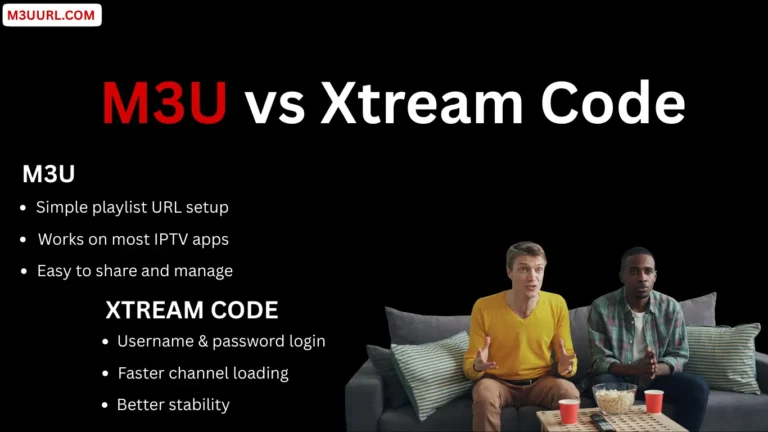
An M3U playlist is a file or link that arranges IPTV channels, movies, and series, allowing your IPTV player to load and stream content instantly. It is the most widely supported format across IPTV apps and devices. For more details, visit: What Is M3U
An M3U playlist simplifies IPTV by enabling any compatible player or device to load channels instantly while keeping all content neatly organized.
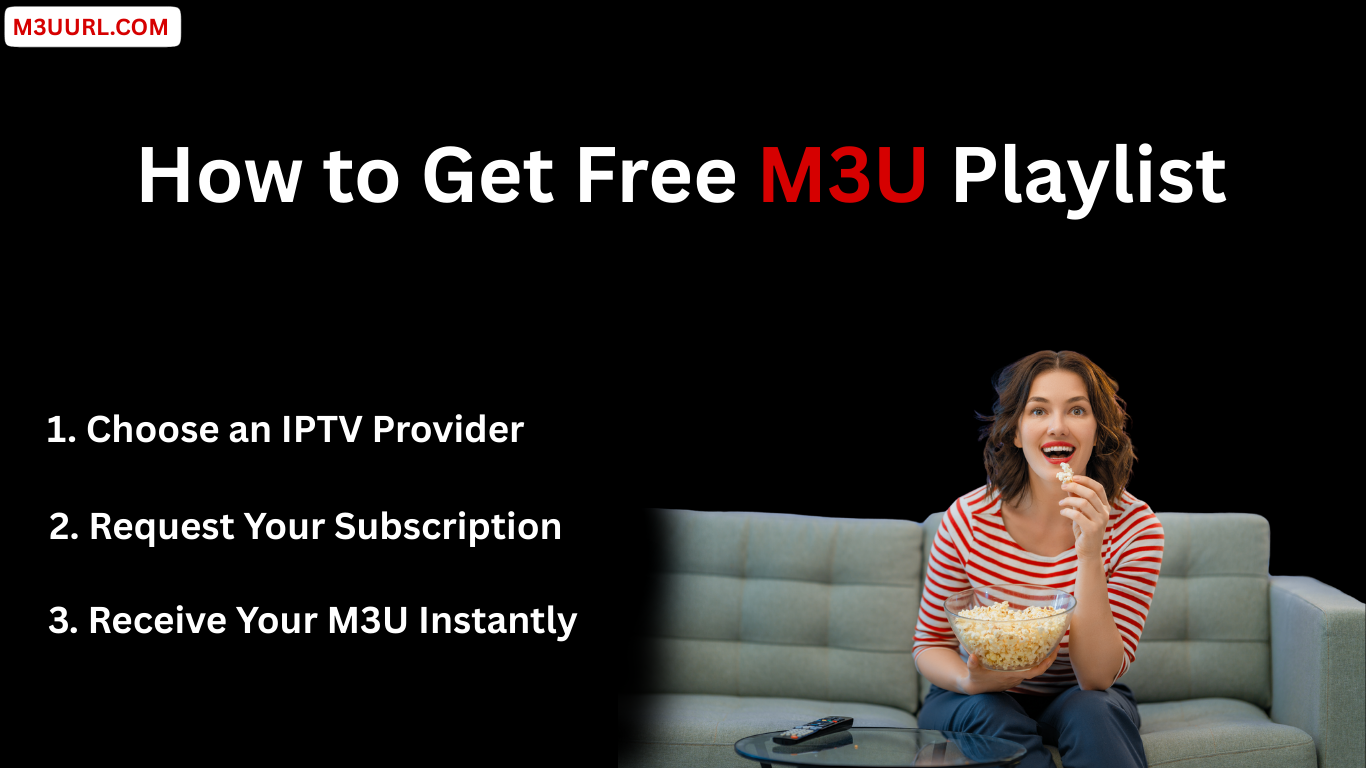
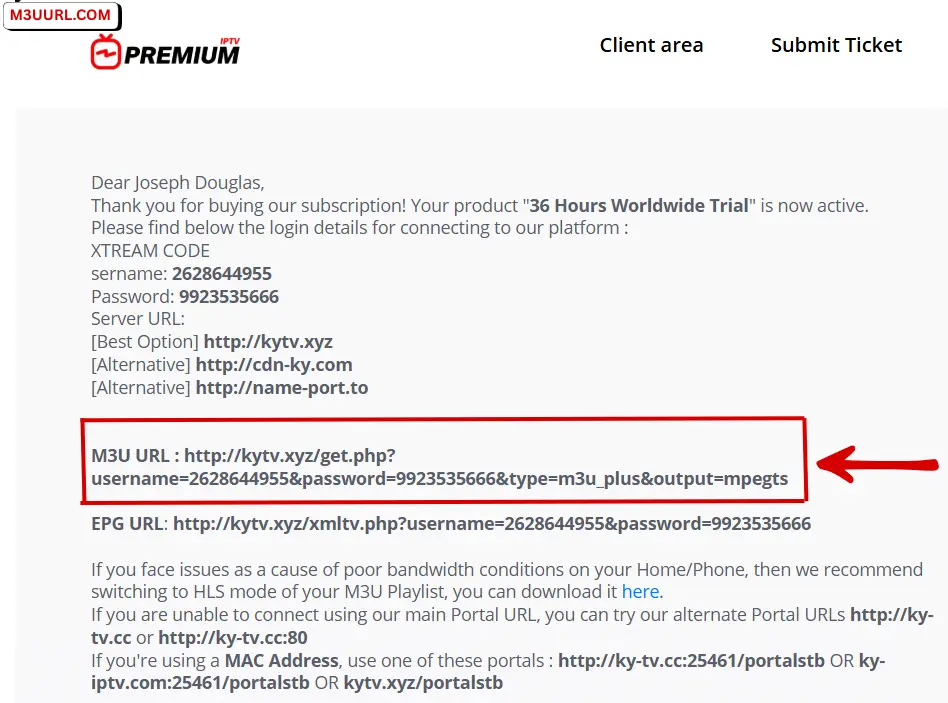
There are only a few safe and reliable ways to obtain an M3U playlist. The best option is to get it from a trusted IPTV provider that offers stable service and complete access details.
You can receive an M3U playlist in seconds and discover reliable IPTV providers that offer a free M3U trial, usually delivered automatically within minutes.
This section shows you how to add an M3U playlist to VLC Media Player step by step on any supported device.
1. Get your M3U playlist first: (Free guide)
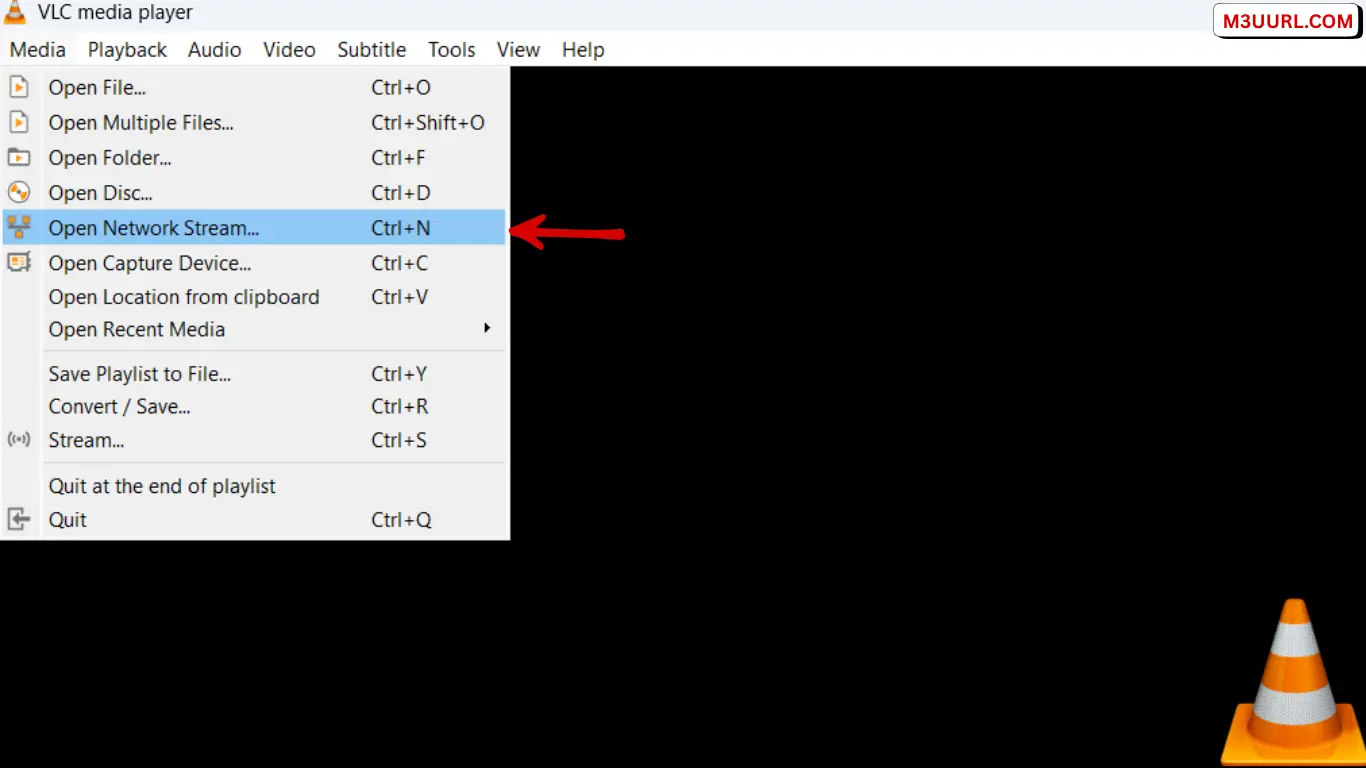
2. Open VLC Media Player → click Media → select Open Network Stream…
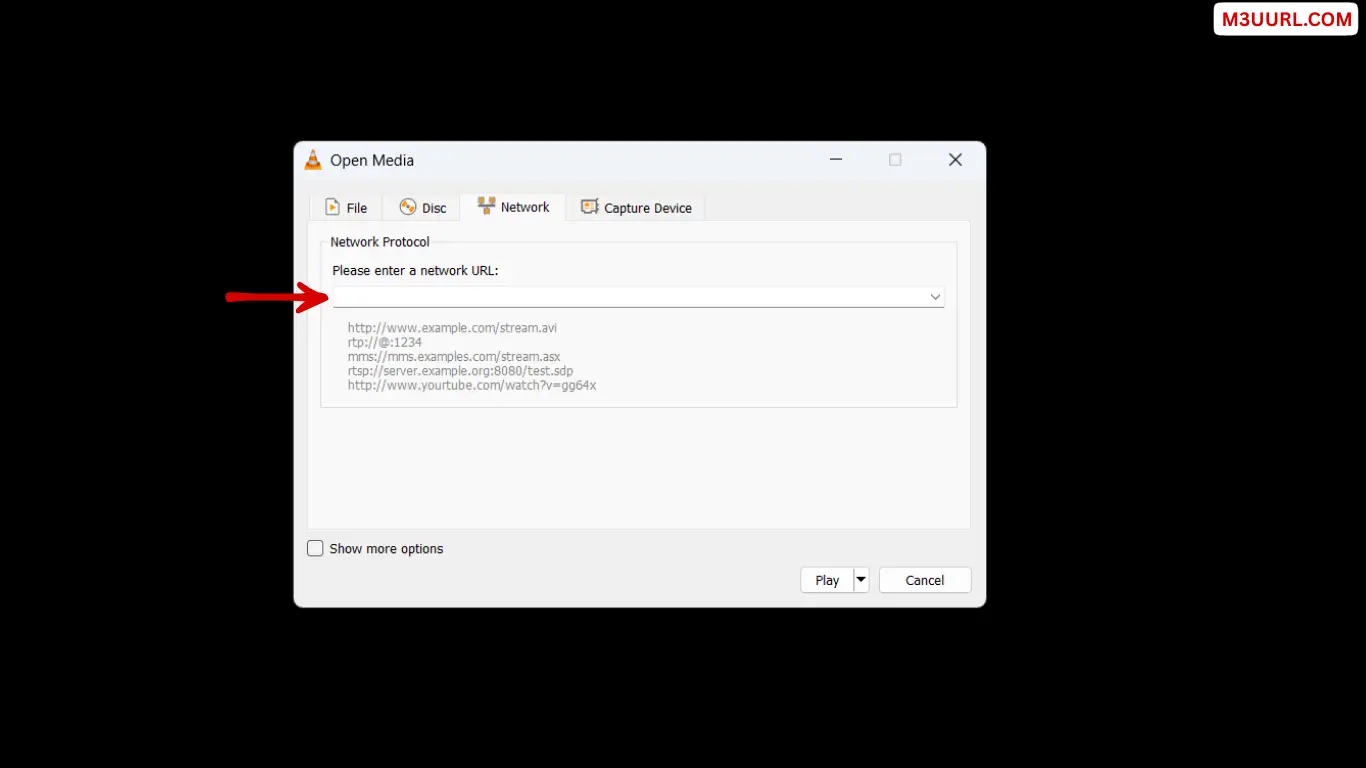
3. Paste M3U playlist URL.
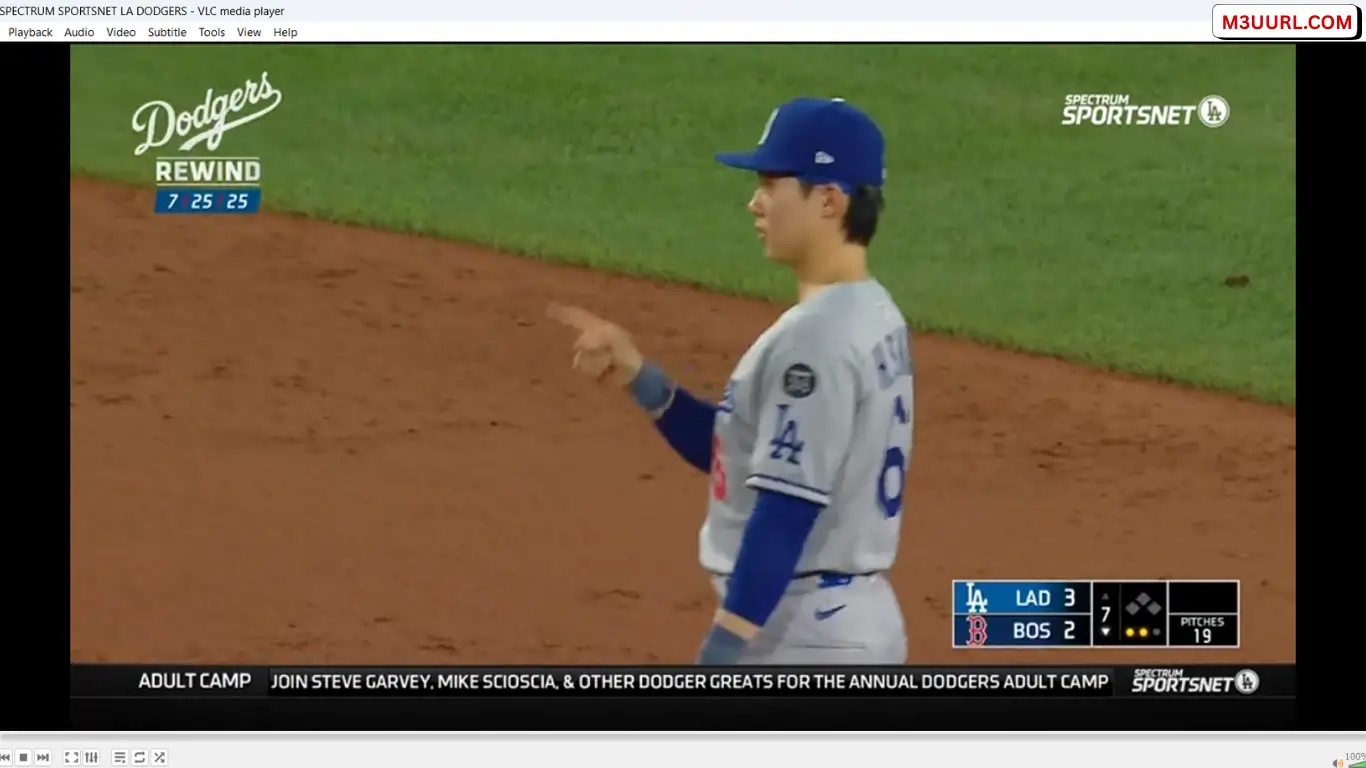
4. Start Watching Live IPTV Using VLC.
The right IPTV player can make your M3U playlist faster, smoother, and easier to use. Here are the best IPTV players that support M3U and Xtream Codes on all devices.
One of the best IPTV players for Android TV and Firestick, offering a premium layout and fast performance. for more info, visit: Tivimate
A popular multi-device IPTV app that supports M3U and Xtream Codes with an easy setup process. for more info, visit: IPTV Smarters Pro
A fast and modern IPTV player that works with both M3U and Xtream Codes on Android and Firestick. for more info, visit: XCIPTV
A simple and lightweight IPTV app that loads M3U links quickly and supports multiple devices. for more info, visit: Xtream Player
A great IPTV app for Samsung and LG Smart TVs, offering easy activation and M3U compatibility. for more info, visit: SmartOne
A powerful Smart TV IPTV player with smooth design and reliable M3U playlist support. for more info, visit: IBO Player
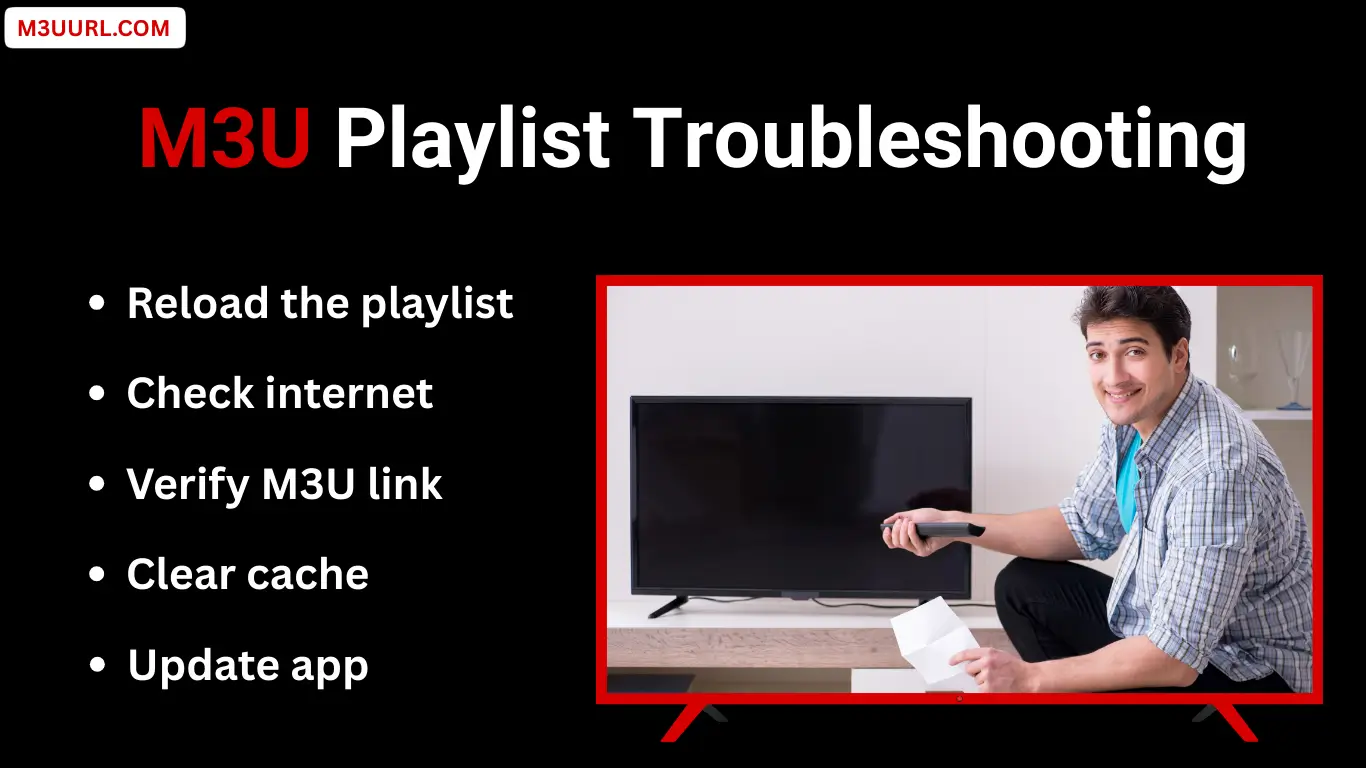
This troubleshooting guide covers the most common issues users face when playing M3U playlists in VLC Media Player and provides simple, effective solutions to fix playback errors, missing channels, and streaming problems.
If your M3U playlist fails to load, double-check the URL for mistakes, confirm your IPTV subscription is active, and make sure VLC Media Player is updated to the latest version.
When channels do not appear, open the playlist panel, reload the stream, or restart VLC to refresh and properly load the channel list.
Buffering issues are usually caused by slow internet connections, server overload, or low network caching settings—adjust VLC’s network cache to improve streaming stability.
If you want a quick, free, and reliable way to play an M3U playlist, VLC Media Player is an excellent choice. It works across all devices and is perfect for testing IPTV links before using advanced players.
VLC Media Player is completely legal to use. However, the legality of M3U playlists depends on whether the IPTV content is licensed by the provider. Always use legal and authorized IPTV services.
This usually happens due to an expired subscription, an incorrect M3U link, or temporary server issues. Double-check the URL and restart VLC.
After loading the M3U, open the playlist panel by pressing Ctrl + L on Windows or Cmd + L on Mac to view all available channels.
VLC has very limited EPG support and does not show a full TV guide like dedicated IPTV apps.
Buffering is often caused by slow internet, Wi-Fi instability, or IPTV server overload. Increasing network caching in VLC can help.
Yes, but only if your IPTV provider allows multiple connections. Using more devices than permitted may cause interruptions.